A Pomodoro Timer Built Into Your Wallpaper — Focus Without an Extra App
Pomodoro Ring draws a live countdown ring directly on your Mac desktop — no app window, no notification badge. 25-min work cycles, 5-min breaks, zero window clutter.
Every productivity app eventually gets a Pomodoro timer. It shows up as a menubar item, or a floating window, or a browser extension with a tomato icon. Some of them are genuinely good. All of them share the same problem: they're an extra thing on your screen that you have to look at, manage, and dismiss.
Pomodoro Ring (from our clocks & focus collection) takes a different approach. The timer is your wallpaper.
How It Works
Pomodoro Ring draws a circular countdown arc directly onto the desktop background. There's no app window, no menubar icon, no notification. The ring sits behind your app windows at the desktop layer — visible when your screen is clear, invisible when you're deep in a maximized window.
The arc depletes clockwise from twelve o'clock. Each frame, the wallpaper reads the current time, computes how far into the current work or break cycle you are, and renders the arc to that exact position. There's no separate timer running in the background — the time is the timer.
Color shifting as a passive alert. The ring starts green at the beginning of a work block. As time runs low it shifts through amber and into red, giving you a visual sense of urgency without interrupting you. The color transition is gradual enough that you won't notice it consciously until you're a few minutes from the end — at which point it's a useful signal rather than a distraction.
Work and break cycles. After the 25-minute work ring completes, the wallpaper automatically begins a 5-minute break ring in a cooler blue-green. When the break ends, the work cycle resumes. The transition happens without any interaction required.
Parameters: Work Duration, Break Duration, Ring Color (the starting hue — the amber-to-red shift happens relative to your chosen base color), Ring Thickness, and Ring Opacity. If you use a light-colored background, reducing opacity keeps the ring visible without overwhelming the scene.
Why a Wallpaper Is Better Than a Floating Timer
The standard floating timer lives in a window. That window needs to be positioned somewhere on screen where it doesn't interfere with your work. You minimize it, you lose it. You move a window on top of it, you lose it. You switch Spaces, you lose it. You end up spending a small but real amount of attention managing the timer itself — which is exactly the kind of friction the Pomodoro technique is supposed to eliminate.
A wallpaper-based timer has none of those failure modes. It occupies the desktop layer — below every window, always present, never covering anything. It requires no positioning, no window management, no periodic recovery. When you clear your screen for a moment — to check your email, to look at a reference document — the ring is just there, telling you where you are in the cycle.
There's also something psychologically different about a timer that exists in the environment rather than in an application. It's closer to a wall clock than to a stopwatch. You glance at it; you don't check it. That shift matters when you're trying to stay in a focused state.
Who It's For
Pomodoro Ring works best for people who already use the Pomodoro technique and want to reduce the overhead of running it. If you've never tried structured work cycles, this is a reasonable way to start — the wallpaper makes the rhythm visible without requiring you to actively manage it.
It also works well for setups where the desktop is frequently visible: large external monitors used in windowed mode, minimalist setups with few open apps, or workflows where you regularly surface the desktop between tasks.
For more options in the same genre, the best minimalist clock wallpapers for Mac covers several wallpapers that put time on your desktop without the focus-mode angle.
Browse the full collection at Novaframe.
Pomodoro Ring
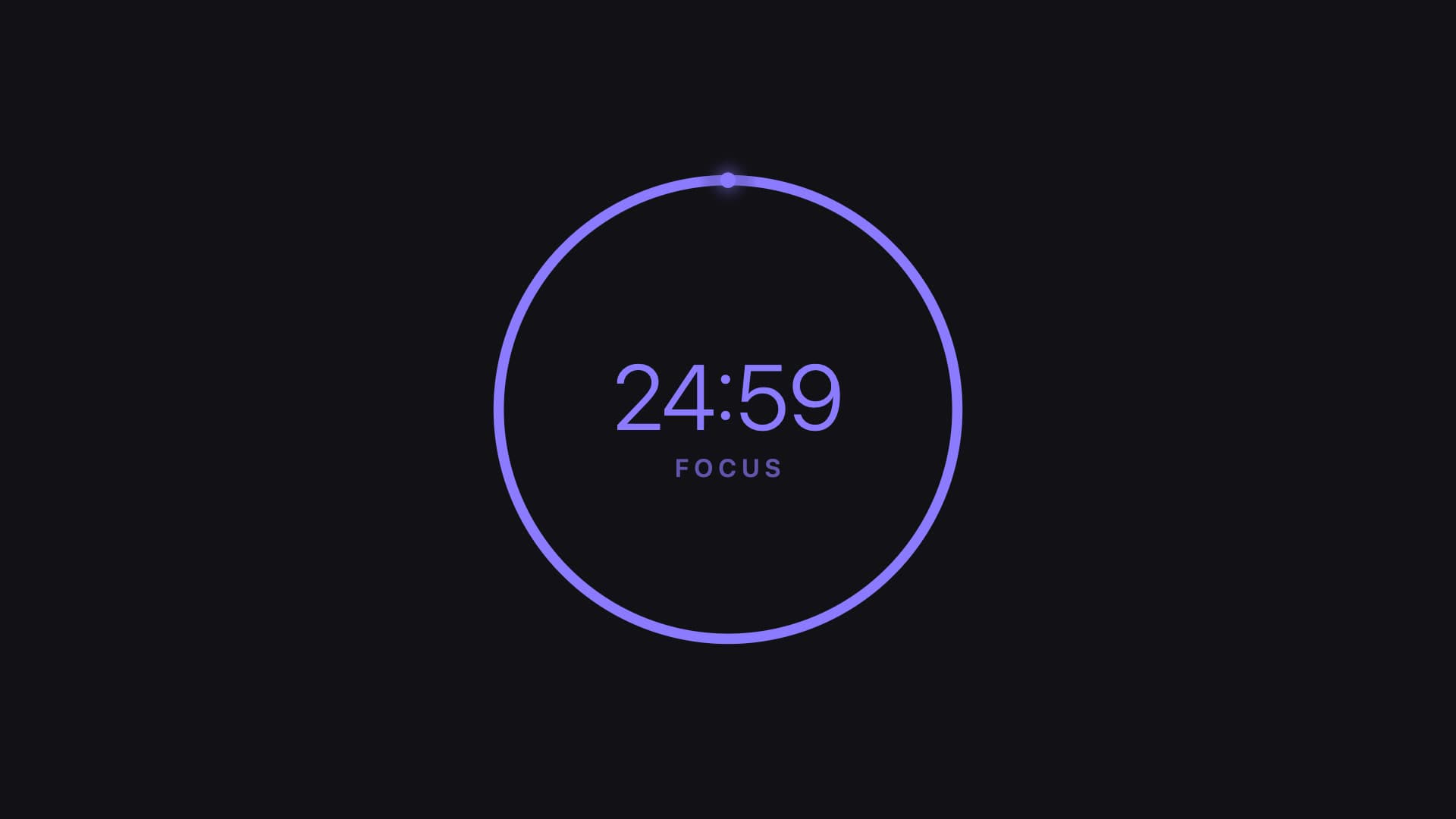
Supercharge your productivity. A minimalist circular timer bakes focus techniques right into your desktop. Work hard and break smart. Customize your focus minutes, break intervals, and striking indicator colors. Get things done.
Run this as a live wallpaper with Novaframe
Novaframe is the free desktop engine behind these wallpapers — real-time shaders rendered on your GPU, not video loops. Download it once, then apply anything from the catalogue in one click.
Frequently asked questions
Related articles
macOS Sequoia Wallpaper Keeps Resetting to Default? Here Is the Permanent Fix
Fix the persistent macOS Sequoia bug where custom desktop wallpapers revert to default after reboot, sleep, or external monitor disconnect.
4 min readDual Monitor Live Wallpapers on Mac: Performance, Clamshell & Setup Guide
Everything you need to know about running live, animated wallpapers on Mac multi-monitor setups, external 4K displays, and clamshell mode.
4 min readDoes Rainmeter Work on Mac? Best macOS Alternatives in 2026
Rainmeter does not run on macOS. Explore the top native Mac alternatives for desktop customization, widgets, system stats, and GPU-accelerated live wallpapers.
5 min read