Dual Monitor Live Wallpapers on Mac: Performance, Clamshell & Setup Guide
How to run live wallpapers across dual monitors and external displays on Mac without battery drain, fan noise, or display desync.
Plugging a MacBook into an external 4K monitor, Apple Studio Display, or dual-screen workstation transforms how you work. But when you try to customize your desktop with animated or live wallpapers across multiple screens, macOS presents unique quirks that Windows users never encounter.
From display topology changes and clamshell lid transitions to Retina resolution scaling and GPU battery draw, here is how dual-monitor live wallpapers actually perform on Mac in 2026.
The Mac Multi-Display Architecture: Why Video Loops Struggle
On macOS, managing desktop backgrounds across multiple monitors requires hooking into the window server (WindowServer). When you run a traditional "video loop" live wallpaper on a dual-monitor setup:
- Dual H.264/HEVC Decoders: If both displays run 4K video loops, your Mac must continuously decode two separate 3840×2160 video streams every second. Even with Apple Silicon hardware media engines, this consumes baseline memory bandwidth and generates sustained thermal load.
- WindowServer Desync: Over time, twin video players slowly drift out of phase, breaking any seamless panoramic illusion.
- Display Sleep Glitches: When macOS turns off external monitors to conserve energy, poorly written background apps fail to release their OpenGL/Metal surfaces, occasionally causing window server crashes or blank desktop icons.
The Procedural Alternative: Resolution Independence
This is why Novaframe takes a fundamentally different engineering path: real-time procedural rendering rather than pre-rendered video clips.
Because themes like Silk Aurora or Voronoi Drift are generated by mathematical shaders directly on the GPU:
- Dynamic Resolution Scaling: Whether connected to a 1080p secondary monitor, a 4K display, or a 5K Studio Display, the engine renders vector-sharp geometry natively without pixelation or heavy video file decoding.
- Clamshell Mode Seamlessness: When you close your MacBook lid, Novaframe listens to the OS display reconfiguration event (
CGDisplayRegisterReconfigurationCallback) and instantly shifts the canvas to your external monitor without resetting settings or flashing black. - Smart Resource Throttling: Novaframe renders on your primary active workspace while keeping secondary displays minimal, preventing unnecessary thermal throttling when rendering complex timelines or compiling code.
| Workstation Scenario | Video Loop Apps (Wallpaper Engine Mac ports) | Novaframe Native Procedural Shaders |
|---|---|---|
| Dual 4K / 5K Monitors | Decodes twin 4K video streams (~15–30% CPU, fan noise) | Direct Metal GPU shader (<1% CPU, silent) |
| MacBook Clamshell Mode | Frequently desyncs or freezes WindowServer | CGDisplay topology hook shifts canvas instantly |
| Retina / Scaling | Blurry if video aspect doesn't match monitor exactly | Vector-sharp mathematical scaling at native DPI |
| Display Occlusion | Renders even when covered by full-screen apps | Pauses rendering (0 FPS) when windows occlude desktop |
3 Essential Settings for Dual-Monitor Mac Setups
To get the most aesthetic desk setup without draining battery or spinning fans, ensure your wallpaper engine is configured correctly:
1. Enable "Pause When Occluded"
When you have a browser window maximized on Screen 1 and code editor on Screen 2, your live wallpapers are completely hidden. A good engine should monitor window visibility and drop render frequency to 0 FPS whenever windows fully cover the desktop.
2. Configure Clamshell Transition Smoothing
In macOS System Settings > Displays, verify your external monitor is assigned as the Main Display when docked. This ensures menu bar items, notifications, and desktop engine windows properly anchor to the external monitor when the laptop lid closes.
3. Match Color Profiles
If you are pairing a MacBook Liquid Retina XDR display with a third-party IPS monitor, calibrate your external monitor's gamma to Display P3 or sRGB. Procedural shaders with deep black levels look significantly more unified across displays when color spaces align.
Elevate Your Multi-Monitor Workspace
A dual-monitor desk setup shouldn't feel cluttered or loud. By choosing an engine that prioritizes real-time shader math over raw video decoding, you can enjoy fluid, responsive motion on your external screens with the calm, silent reliability Mac users expect.
Explore our collection of GPU-accelerated live wallpapers and test Breathing Gradient on your multi-display workstation today.
Singularity
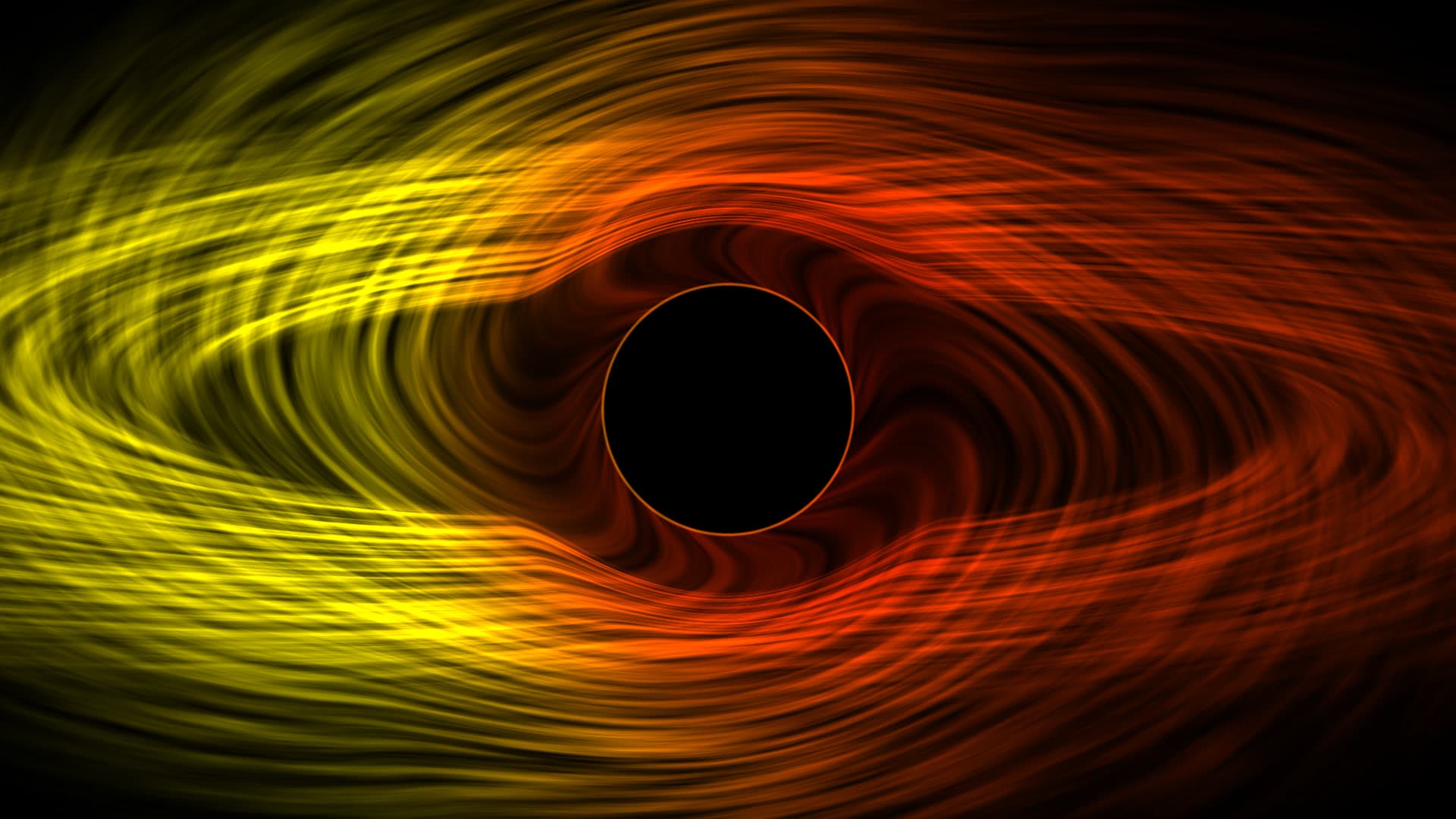
Real-time simulation of an extreme Kerr black hole accretion disk. Fibrous plasma filaments spiral inward along relativistic geodesic curves, accented by gravitational redshift and Doppler beaming along the approaching disk boundary. Designed specifically for high-contrast OLED and dark-mode desktop setups. Renders via GPU hardware compute shaders at 60 FPS while remaining light on system memory, automatically entering zero-power pause states whenever active work windows conceal the wallpaper plane.
Smooth live wallpapers across your external Mac displays
Novaframe renders procedural shaders directly on your GPU at under 1% CPU. Dynamic resolution scaling preserves 60fps across Studio Displays, ultrawides, and clamshell setups.
Frequently asked questions
Related articles
macOS Sequoia Wallpaper Keeps Resetting to Default? Here Is the Permanent Fix
Fix the persistent macOS Sequoia bug where custom desktop wallpapers revert to default after reboot, sleep, or external monitor disconnect.
4 min readDoes Rainmeter Work on Mac? Best macOS Alternatives in 2026
Rainmeter does not run on macOS. Explore the top native Mac alternatives for desktop customization, widgets, system stats, and GPU-accelerated live wallpapers.
5 min readDo Live Wallpapers Drain MacBook Battery? Apple Silicon Benchmarks (M1–M4)
Can you run live wallpapers on a MacBook without destroying your battery? Real benchmarks comparing Video Loops, Dynamic Desktop, and Procedural Shaders on Apple Silicon.
4 min read