macOS Sequoia Wallpaper Keeps Resetting to Default? Here Is the Permanent Fix
Is macOS Sequoia reverting your custom wallpaper to the default background or black screen after every reboot? Here is why it happens and how to fix it.
One of the most frustrating bugs reported across macOS Sonoma and macOS Sequoia is the reverting wallpaper glitch.
You carefully set an aesthetic desktop background or live dynamic wallpaper, lock your screen or restart your Mac, and suddenly your desktop reverts back to the default macOS Sequoia background, a generic Sonoma landscape, or a solid black screen.
If your Mac wallpaper keeps resetting after sleep, restarts, or unplugging an external monitor, here is the technical root cause and step-by-step instructions to permanently resolve it.
Why macOS Sequoia Resets Your Wallpaper
The macOS desktop wallpaper system is handled by the com.apple.wallpaper subsystem and the macOS Dock process. When you select a wallpaper, macOS writes the path and display configuration into an internal SQLite database (desktoppicture.db) and user preference property list.
This system frequently breaks under three specific conditions:
- Display UUID Desynchronization: If you use an external monitor or USB-C hub, macOS assigns a temporary hardware UUID to the display. If the monitor reconnects a split-second slower than the internal display during boot, macOS cannot find the configured wallpaper for that UUID and fails over to the factory default.
- Corrupted Wallpaper Store Cache: In macOS Sonoma and Sequoia, wallpaper settings moved to
~/Library/Application Support/com.apple.wallpaper/. If this cache experiences an ungraceful shutdown, it becomes read-only or desynced. - iCloud Wallpaper Sync Conflicts: If you have multiple Macs syncing settings through iCloud, competing display resolutions can overwrite your local wallpaper choice.
The 3-Step Fix to Stop macOS Wallpaper Resets
Step 1: Purge the Corrupted Wallpaper Preference Store
The cleanest way to resolve persistent reset loops is to clear the corrupted preference cache and allow macOS to generate a clean database:
- Open Terminal on your Mac (
Cmd + Space, typeTerminal, hit Enter). - Run the following command to terminate the wallpaper daemon:
killall -9 WallpaperAgent - Remove the corrupted cache directory:
rm -rf ~/Library/Application\ Support/com.apple.wallpaper/Store/ - Restart the macOS Dock to rebuild clean defaults:
killall Dock
After running these commands, open System Settings > Wallpaper, select your preferred wallpaper again, and restart your Mac to verify the setting persists.
Step 2: Disable Competing Third-Party Sync Tools
If you use cloud backup services (Dropbox, OneDrive, Google Drive) that monitor your Pictures folder, they can occasionally lock image files while macOS is attempting to read them during system wake.
Move your wallpaper files to a dedicated local directory like ~/Pictures/Wallpapers/ and ensure the folder is set to "Always Keep on This Device."
Step 3: Switch to a Dedicated Native Wallpaper Engine
If you want dynamic motion, day/night cycles, or real-time interactive scenes without dealing with macOS's brittle built-in wallpaper cache, use a dedicated native engine like Novaframe.
Novaframe operates outside the fragile com.apple.wallpaper plist store:
- Independent Native Window Layer: Novaframe anchors its canvas directly below the desktop icon layer using low-level macOS Cocoa window positioning (
NSWindowLevel). - Topology-Aware Display Hooks: When you plug or unplug an external monitor, Novaframe listens to CoreGraphics display events and dynamically scales the active scene without flashing default Apple images.
- Auto-Launch on Boot: Novaframe launches seamlessly via a lightweight macOS login item, restoring your chosen theme instantly upon login.
| Feature / Behavior | macOS com.apple.wallpaper |
Novaframe Native Engine |
|---|---|---|
| Persistence across reboots | Resets on desynced SQLite cache | 100% persistent native window anchor |
| External monitor hot-plug | Reverts to default on UUID lag | CoreGraphics topology listener rescales scene |
| Clamshell lid transitions | Frequently flashes black | Seamless display handover |
| CPU / Battery impact | High during re-index spikes | Under 1% CPU (GPU shader rendering) |
Summary
Don't let macOS Sequoia's wallpaper cache bugs break your desk setup aesthetic:
- Clear
~/Library/Application Support/com.apple.wallpaper/Store/in Terminal. - Ensure your wallpapers live in a non-synced local folder.
- For living, interactive motion that never resets, try Novaframe Engine with our free Breathing Gradient theme.
Mercator Chronos
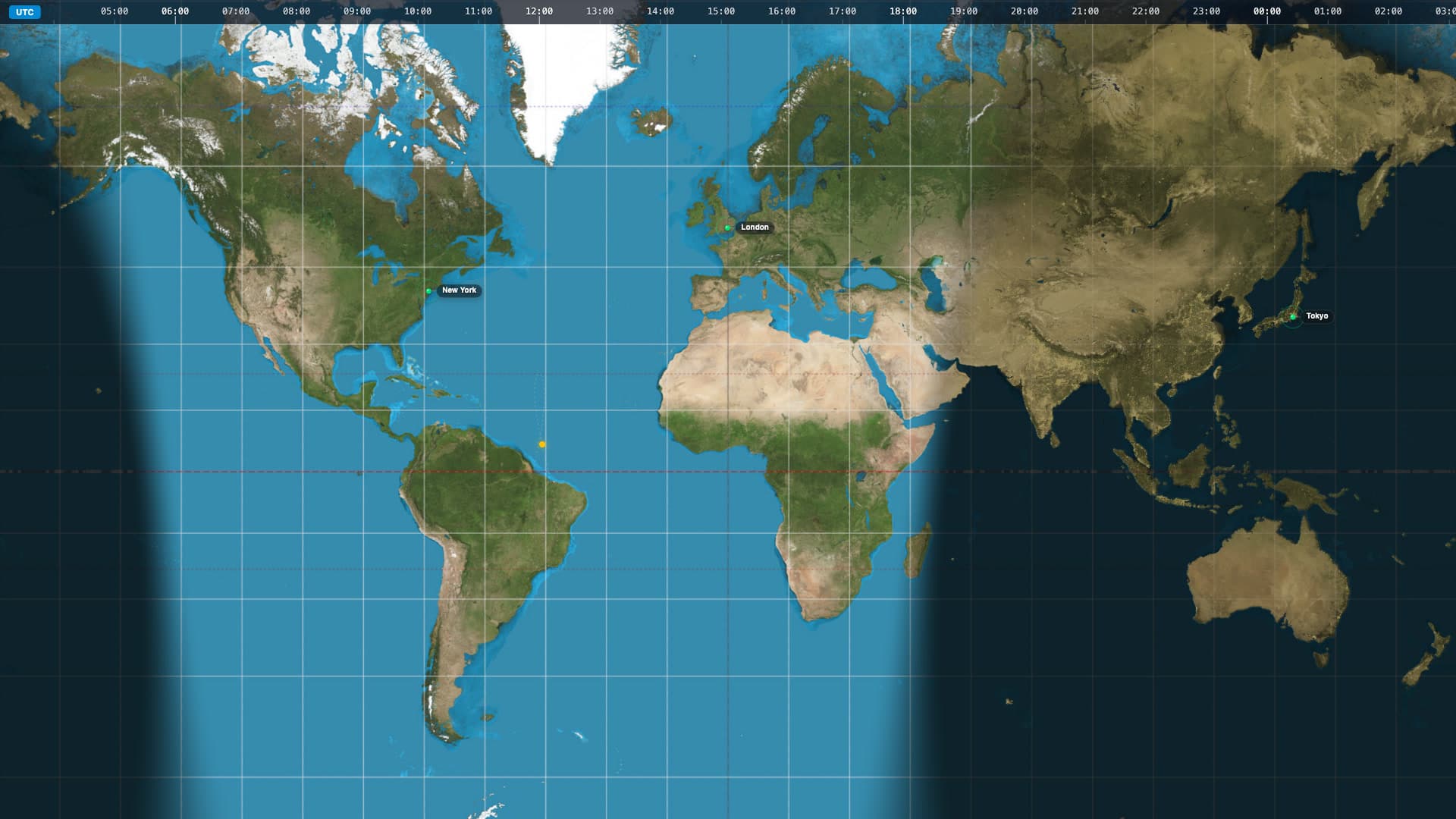
Transform your desktop into a live, global command centre with Mercator Chronos. This dynamic wallpaper brings the Earth’s natural day-night cycle directly to your screen in a stunning, high-definition cylindrical projection. As time passes, the dynamic terminator shadow sweeps across the map, plunging regions into beautifully rendered nightscapes illuminated by glowing city lights. Whether you use it to track time zones, monitor global events, or simply enjoy a highly functional and data-rich aesthetic, this wallpaper provides a sophisticated, constantly evolving backdrop.
Stop macOS wallpaper resets permanently with Novaframe
Novaframe operates outside com.apple.wallpaper's fragile cache. It locks native window anchors across reboots, clamshell lid switches, and display disconnects with zero glitching.
Frequently asked questions
Related articles
Dual Monitor Live Wallpapers on Mac: Performance, Clamshell & Setup Guide
Everything you need to know about running live, animated wallpapers on Mac multi-monitor setups, external 4K displays, and clamshell mode.
4 min readDoes Rainmeter Work on Mac? Best macOS Alternatives in 2026
Rainmeter does not run on macOS. Explore the top native Mac alternatives for desktop customization, widgets, system stats, and GPU-accelerated live wallpapers.
5 min readA Pomodoro Timer Built Into Your Wallpaper — Focus Without an Extra App
Pomodoro Ring draws a live countdown ring directly on your Mac desktop — no app window, no notification badge. 25-min work cycles, 5-min breaks, zero window clutter.
4 min read