macOS Sequoia Wallpaper Settings: The Complete Guide
How to change wallpapers in macOS Sequoia, set different wallpapers per Space, span across multiple monitors, and choose the right fill mode — Fill, Fit, Stretch, Centre, or Tile.
macOS Sequoia moved wallpaper settings out of System Preferences and further refined the interface compared to earlier macOS versions. If you're coming from Ventura or Sonoma, a few things have shifted. This guide covers everything: where to find the settings, how to set different wallpapers per Space, how to configure multiple monitors, and what each fill mode actually does.
Where to Find Wallpaper Settings in Sequoia
Open System Settings (the gear icon in your Dock or Apple menu) and choose Wallpaper from the left sidebar. You'll land on a panel that shows your current wallpaper at the top and the wallpaper library below.
The library is organized into sections: Apple wallpapers (static, Dynamic Desktop, and Aerials), any images from your Photos library, and any custom images you've added. You can also drag an image file directly from Finder onto the preview area to set it immediately.
Setting Different Wallpapers per Space
Spaces — the virtual desktops you switch between with Control + number or by swiping four fingers on the trackpad — each support their own wallpaper. This is one of the more useful Sequoia wallpaper features and one of the least discovered.
To set a different wallpaper on each Space:
- Open Mission Control (F3, or swipe up with three fingers).
- The current Space's thumbnail appears at the top. Right-click it and choose Change Wallpaper — this opens the Wallpaper panel scoped to that Space.
- Alternatively, switch into the Space you want to configure and open System Settings → Wallpaper. The selection you make applies only to the active Space.
Each Space stores its wallpaper choice independently. If you delete a Space, its wallpaper preference goes with it; the wallpaper file itself stays wherever it lives on disk.
Setting Wallpapers on Multiple Monitors
If you have an external monitor connected, each display gets its own independent wallpaper. The Wallpaper panel shows a preview for each connected display at the top of the screen; click on a display's preview to select which one you're configuring, then choose your wallpaper from the library below.
Multiple monitors + multiple Spaces is where it gets slightly complex. Each monitor maintains its own Space stack, so Display 1 can have three Spaces with three different wallpapers, and Display 2 can have two Spaces with two different wallpapers. Configure each by switching into the relevant Space on the relevant monitor before opening Wallpaper settings.
Fill Mode: What Each Option Does
When you set a wallpaper, macOS shows a dropdown for how the image fits the screen. The options and what they mean:
| Mode | What it does |
|---|---|
| Fill | Scales the image up until it covers the entire screen, cropping any overflow. Preserves aspect ratio. Default for most images. |
| Fit | Scales the image to fit entirely within the screen, letterboxing or pillarboxing if the aspect ratios don't match. Nothing gets cropped, but you may see solid-color bars at the edges. |
| Stretch | Distorts the image to fill the screen exactly, ignoring aspect ratio. Useful for images designed for a specific resolution; almost always wrong for photographs. |
| Centre | Displays the image at its native pixel dimensions, centered. No scaling. If the image is smaller than your screen, you'll see the desktop color (set via the color picker below) around the edges. |
| Tile | Repeats the image in a grid pattern to fill the screen. Useful for small repeating patterns intended for tiling. |
For most people most of the time: use Fill. It's the correct default for photographs, artwork, and anything designed to be a desktop wallpaper.
The Next Step: If Static Wallpapers Bore You
Everything above is macOS doing exactly what it's designed to do. Static wallpapers are the standard, Dynamic Desktop cross-fades are a pleasant variation, and Aerials are genuinely nice on a home screen or presentation display.
If you've spent any time with those options and found yourself wanting something that actually moves continuously — not a video loop, but a scene that renders live — that's what Novaframe Engine is for. It installs into the same desktop layer that static wallpapers occupy, not as a screensaver, and it renders GPU-native wallpapers that animate indefinitely without looping.
The setup process is short and covered in detail in how to set a live wallpaper on Mac. If you're comparing Novaframe to other options in the category, Wallpaper Engine for Mac has a breakdown of what's different about the approach.
Static wallpapers are good. Your desktop doesn't have to stay still.
Flip Clock
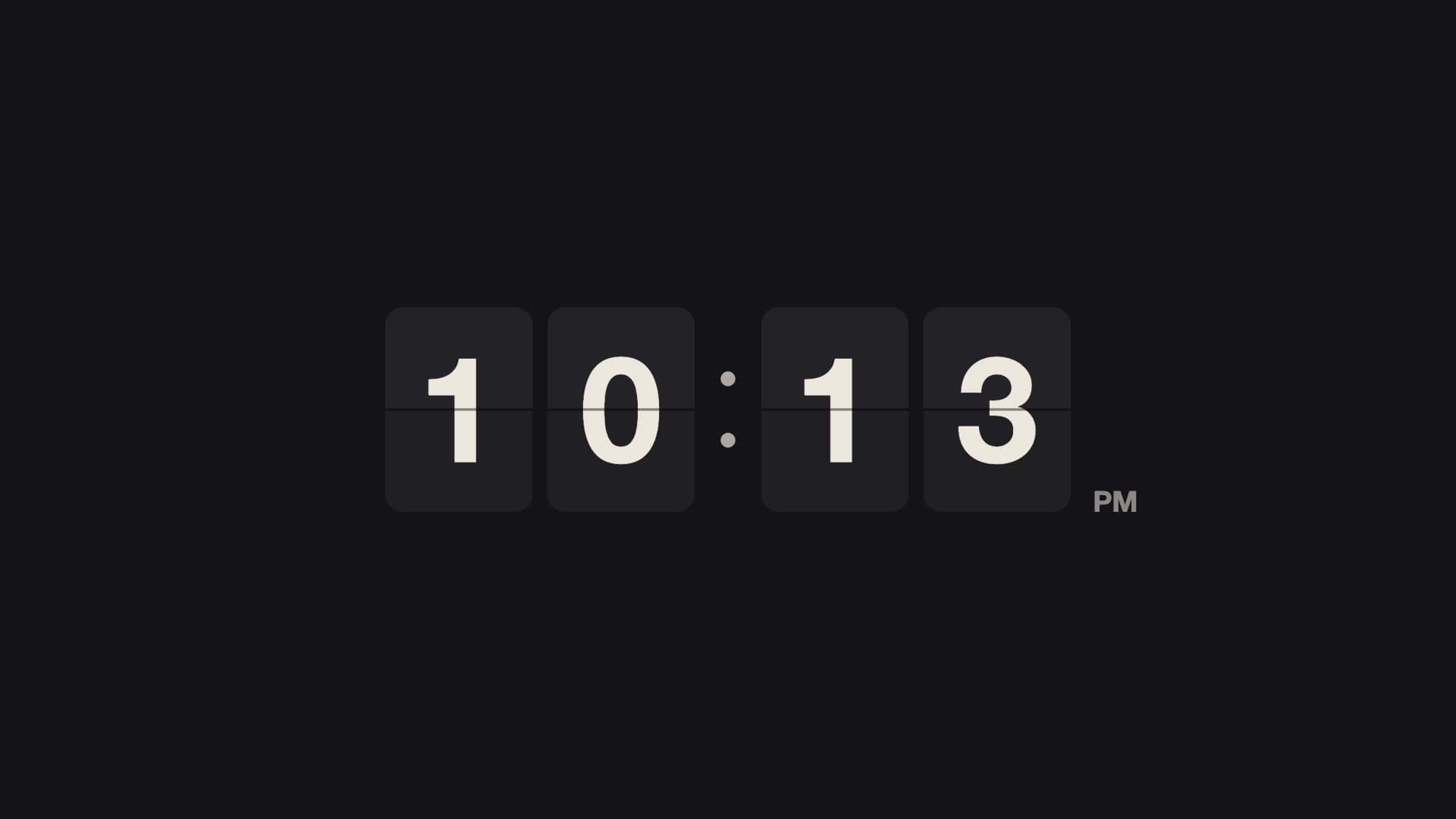
An essential retro-modern utility. The iconic mechanical flip animation is deeply satisfying to watch. Bold digits guarantee perfect visibility across the room. Customize the card background, text color, and size. Switch to a 24-hour mode. Productivity meets nostalgia.
Run this as a live wallpaper with Novaframe
Novaframe is the free desktop engine behind these wallpapers — real-time shaders rendered on your GPU, not video loops. Download it once, then apply anything from the catalogue in one click.
Frequently asked questions
Related articles
macOS Sequoia Wallpaper Keeps Resetting to Default? Here Is the Permanent Fix
Fix the persistent macOS Sequoia bug where custom desktop wallpapers revert to default after reboot, sleep, or external monitor disconnect.
4 min readDual Monitor Live Wallpapers on Mac: Performance, Clamshell & Setup Guide
Everything you need to know about running live, animated wallpapers on Mac multi-monitor setups, external 4K displays, and clamshell mode.
4 min readDoes Rainmeter Work on Mac? Best macOS Alternatives in 2026
Rainmeter does not run on macOS. Explore the top native Mac alternatives for desktop customization, widgets, system stats, and GPU-accelerated live wallpapers.
5 min read